Difference between revisions of "Systems biology - model import"
From BioUML platform
(Created page with "<gallery> File:import_model_01.png|Step 1. File:import_model_02.png|Step 2. File:import_model_03.png|Step 3. File:import_model_04.png|Step 4. </gallery>") |
|||
| (14 intermediate revisions by one user not shown) | |||
| Line 1: | Line 1: | ||
| − | < | + | <font size="3"> |
| − | File:import_model_01.png | + | To import SBML model, do the following: |
| − | File:import_model_02.png | + | <ol> |
| − | File:import_model_03.png | + | <li>Find the folder in the BioUML repository where you want to download the model (for example, use the temporary folder in the tree: <i>data/Collaboration/Demo/Data/Temp</i>). Then, right-click on this folder and select <b>"Import"</b>. |
| − | File:import_model_04.png | + | <li>In the window that opens, click on the <b>"Computer"</b> button and find the document with the model in the file system of your computer. |
| − | </ | + | <li>Select the document and click on the <b>"Start"</b> button. |
| + | <li>The model will appear in the BioUML repository and will be opened in a new workspace tab. | ||
| + | </ol> | ||
| + | |||
| + | Let's see these steps in screenshots: | ||
| + | |||
| + | <ol> | ||
| + | <li>Find the folder in the BioUML repository where you want to download the model (for example, use the temporary folder in the tree: <i>data/Collaboration/Demo/Data/Temp</i>). Then, right-click on this folder and select <b>"Import"</b>. | ||
| + | <br><br>[[File:import_model_01.png]]<br><br> | ||
| + | |||
| + | <li>In the window that opens, click on the <b>"Computer"</b> button and find the document with the model in the file system of your computer. | ||
| + | |||
| + | <br><br>[[File:import_model_02.png]]<br><br> | ||
| + | |||
| + | <li>Select the document and click on the <b>"Start"</b> button. | ||
| + | |||
| + | <br><br>[[File:import_model_03.png]]<br><br> | ||
| + | |||
| + | <li>The model will appear in the BioUML repository and will be opened in a new workspace tab. | ||
| + | |||
| + | <br><br>[[File:import_model_04.png]]<br><br> | ||
| + | </ol> | ||
| + | |||
| + | </font> | ||
Latest revision as of 11:51, 16 March 2022
To import SBML model, do the following:
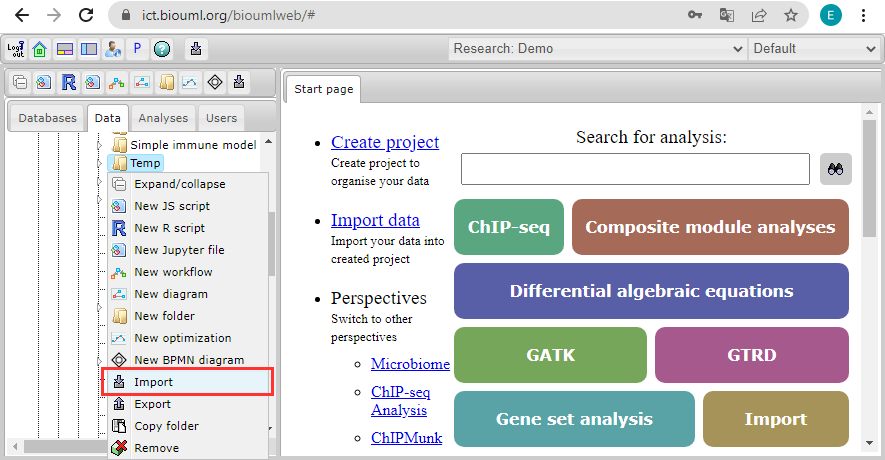
- Find the folder in the BioUML repository where you want to download the model (for example, use the temporary folder in the tree: data/Collaboration/Demo/Data/Temp). Then, right-click on this folder and select "Import".
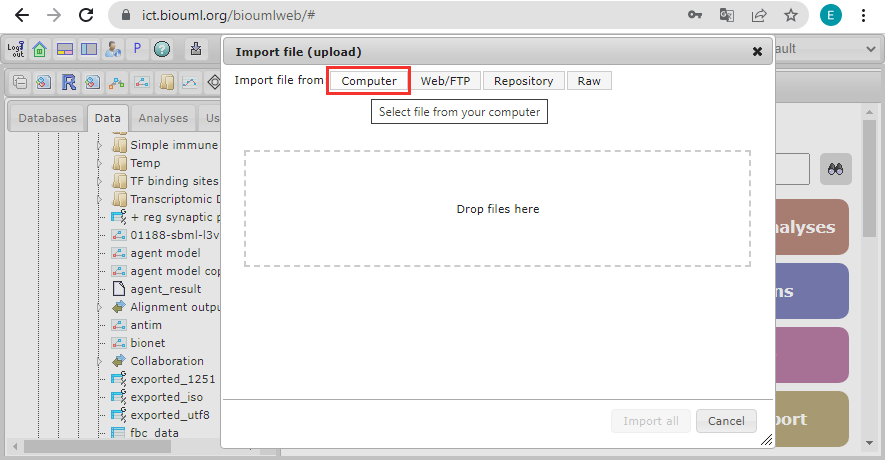
- In the window that opens, click on the "Computer" button and find the document with the model in the file system of your computer.
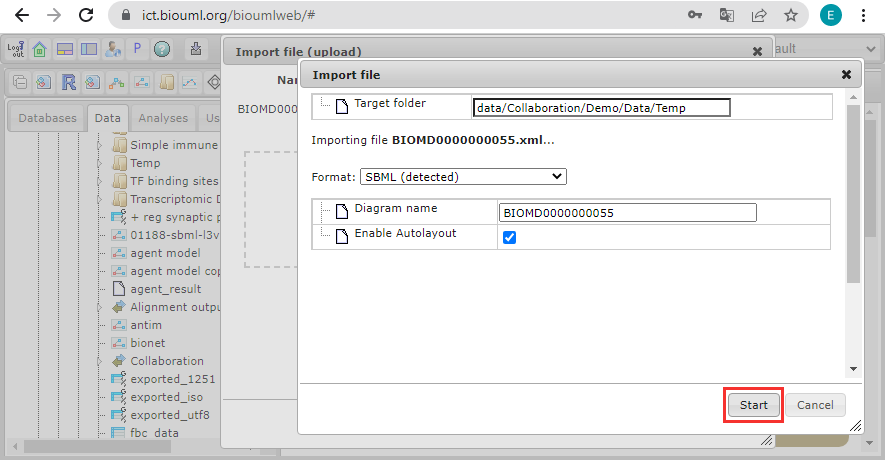
- Select the document and click on the "Start" button.
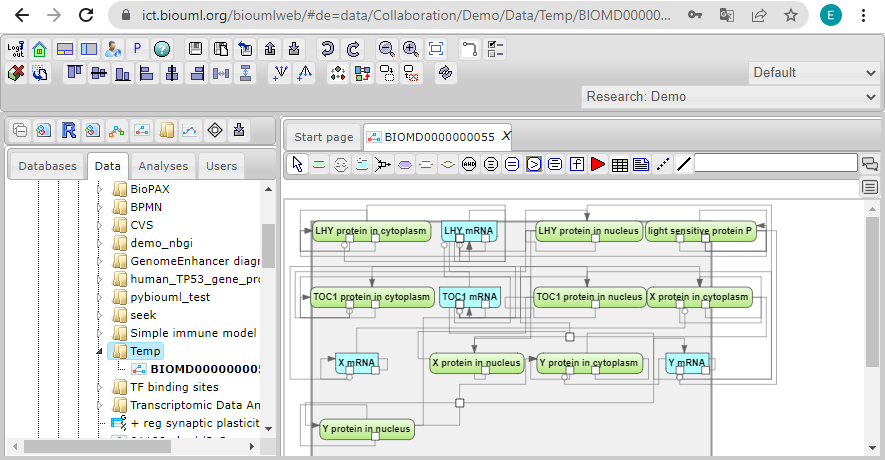
- The model will appear in the BioUML repository and will be opened in a new workspace tab.
Let's see these steps in screenshots:
- Find the folder in the BioUML repository where you want to download the model (for example, use the temporary folder in the tree: data/Collaboration/Demo/Data/Temp). Then, right-click on this folder and select "Import".
- In the window that opens, click on the "Computer" button and find the document with the model in the file system of your computer.
- Select the document and click on the "Start" button.
- The model will appear in the BioUML repository and will be opened in a new workspace tab.